Floating button
v1.8.0Let testers capture screenshots and screen recordings from a movable button over your app.
Show or hide the button
Connect separate settings controls to show and hide handlers after initializing the SDK:
@MainActor
func onShowFloatingButtonSelected() {
    BugScreenSDK.showFloatingButton()
}

@MainActor
func onHideFloatingButtonSelected() {
    BugScreenSDK.hideFloatingButton()
}
showFloatingButton() shows the button even if the initialization option was false. Calls before initialization do nothing. Hiding during a recording stops it and opens a report with the available video.
Capture a report
Drag or throw the button to move it. It springs to the left or right edge. Screen-reader actions can move or hide it without dragging.
- Tap the BugScreen button, then Make a bug report to capture the app and open the reporter. The floating controls are excluded from the screenshot.
- Choose Start screen recording and accept the system prompt. Tap the stop button to open the reporter with the video. Preview or remove it before submitting.
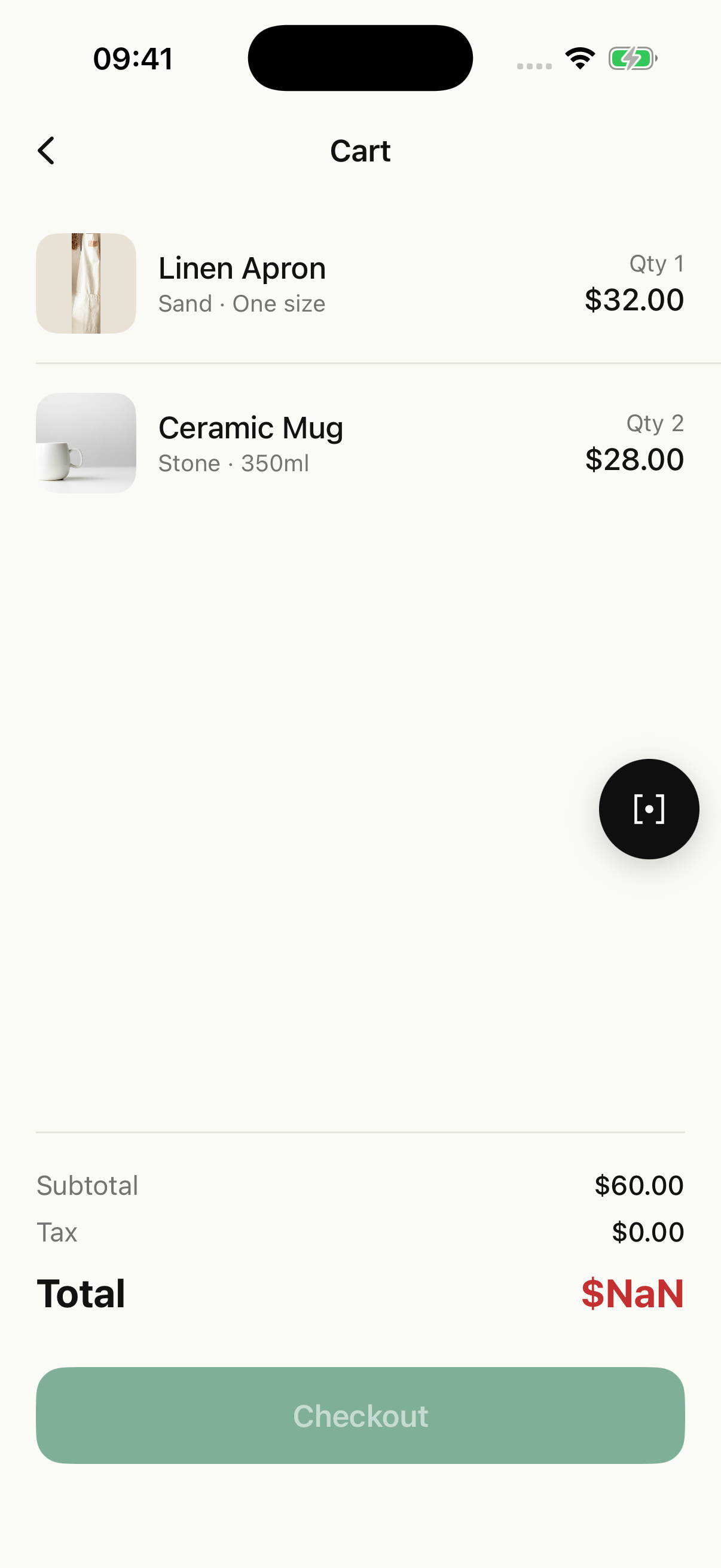
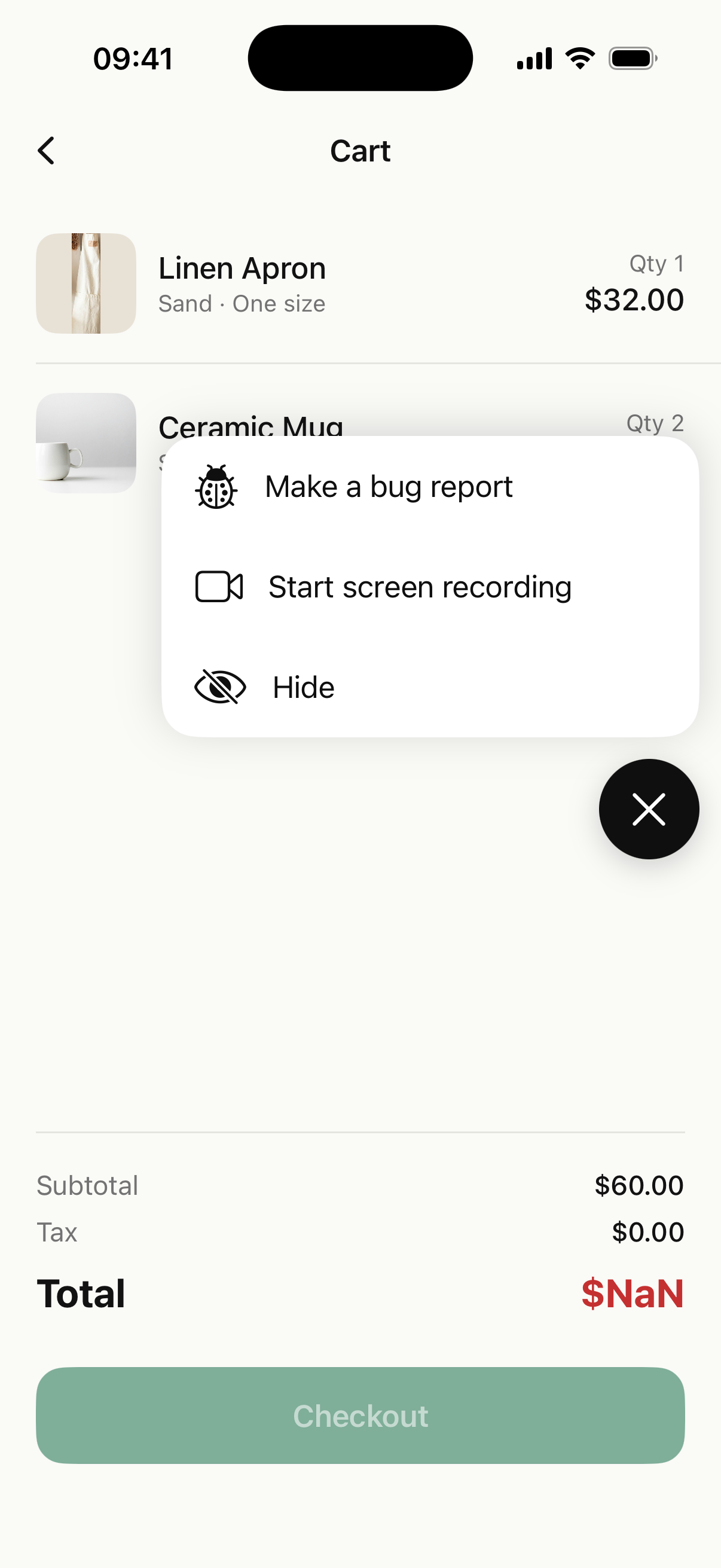
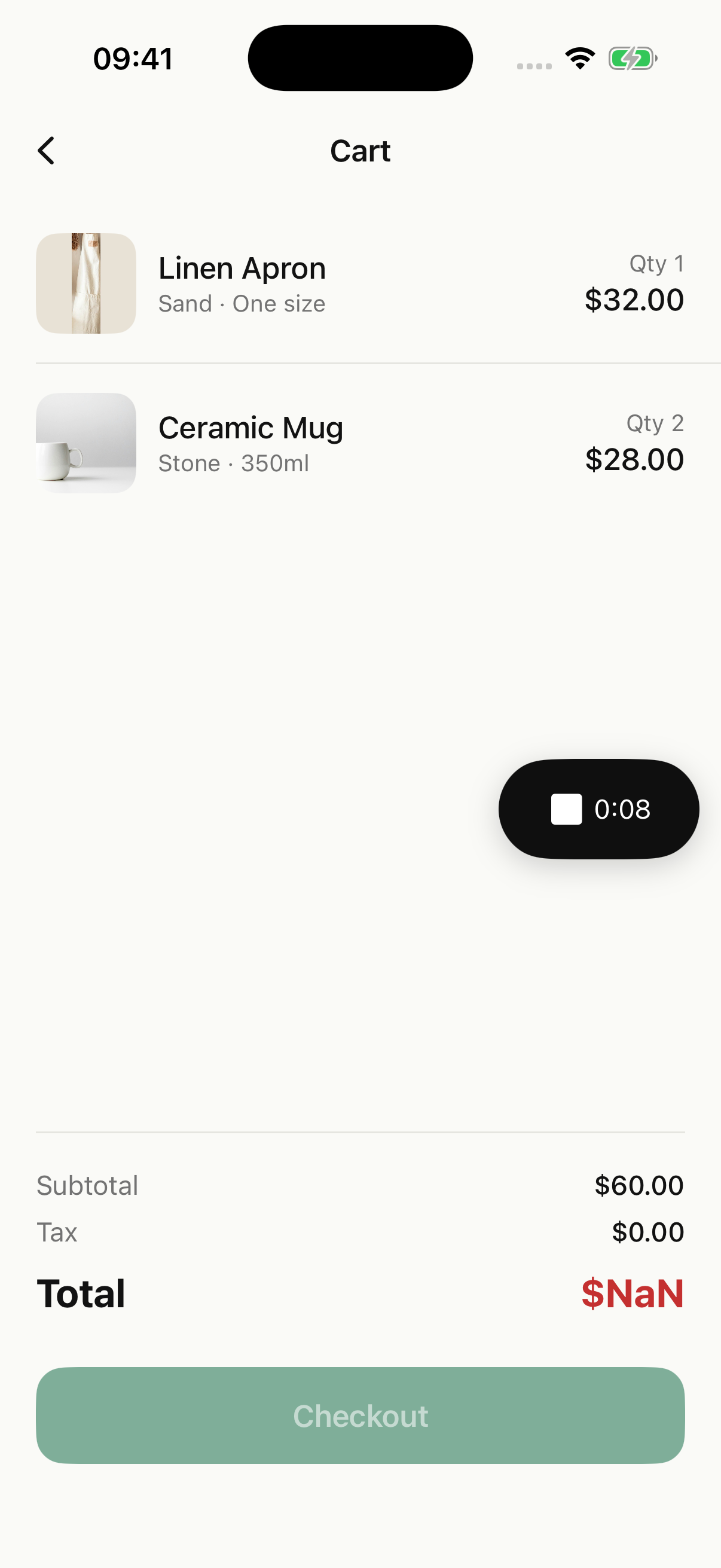
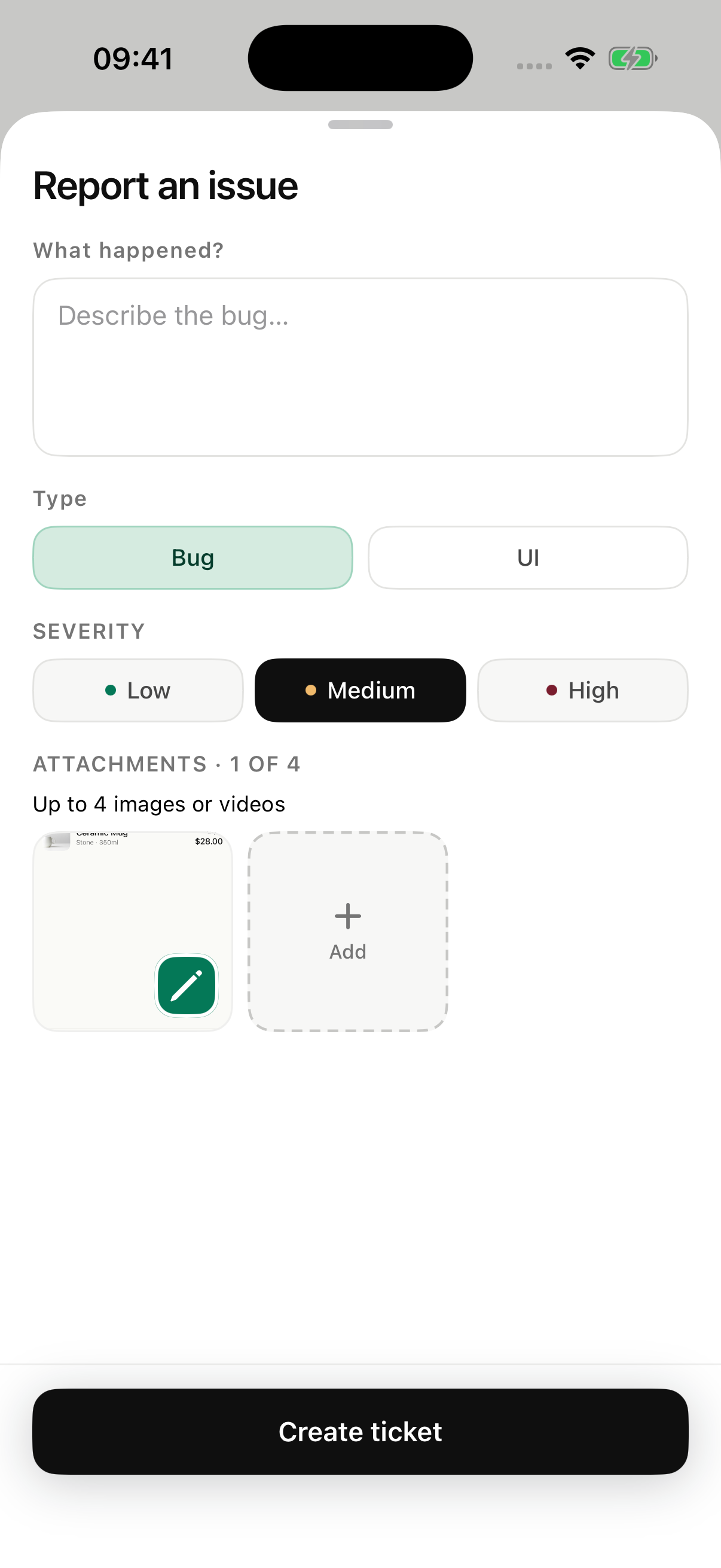
Dismiss for this session
Choose Hide from the menu, or drag the button into the trash target at the bottom and release. Your custom control can show it again. Restarting the app applies the initialization option again.
Recording limits
Recording stops at the current video-duration limit or 60 seconds, whichever is shorter. It has no microphone or app audio. Clips may be shorter after rotation or resource limits. The recording indicator can appear in the video.
Video uploads only when the tester submits the report. Testers can preview or remove it, but cannot redact it.
Backgrounding, locking or a system stop ends the recording. Any available clip opens in a report when you return. Explicit recordings never restart automatically.
If you also use rolling recording
Starting from this button clears rolling recording history. After stopping, rolling recording stays off until you enable it again or reconfigure the SDK. The existing quality setting applies; Balanced is the default.
Check your integration
- Run your app and check that the BugScreen button appears. Move it, open its menu and choose Make a bug report. Check that the screenshot is attached without the floating controls.
- Record a short interaction, stop and play the attached video before sending. Check that the report and video appear in Report Inbox.
- Choose Hide. Show the button from your custom control, then restart the app and check that the initialization option applies again.
If recording settings cannot load, reconnect and retry. If capture is unavailable, use Make a bug report or add an existing video in the reporter.