Use Report Inbox
New reports appear in the Inbox for their app, with screenshots and device context. You can read reports there even when no integration is connected.
Open an app’s Inbox
- Sign in to the Console and select an app.
- Open the Inbox tab, next to Overview.
The Inbox belongs to that app. To see reports for another app, switch apps and open its Inbox. An organisation member can read reports for the organisation’s apps.
Find a report
- Reports appear newest first. Select a row to open the full report.
- Each row shows the description, reporter, Type and Severity, source (SDK or the Companion app), delivery result and arrival time. A missing reporter name appears as unknown.
- Choose Load more to browse older reports, or Search older reports when the Inbox says No recent reports.
- If the Inbox says No reports yet, choose Set up reporting to return to the app’s Overview.
Read a report
- Share the report’s URL with another member of your organisation.
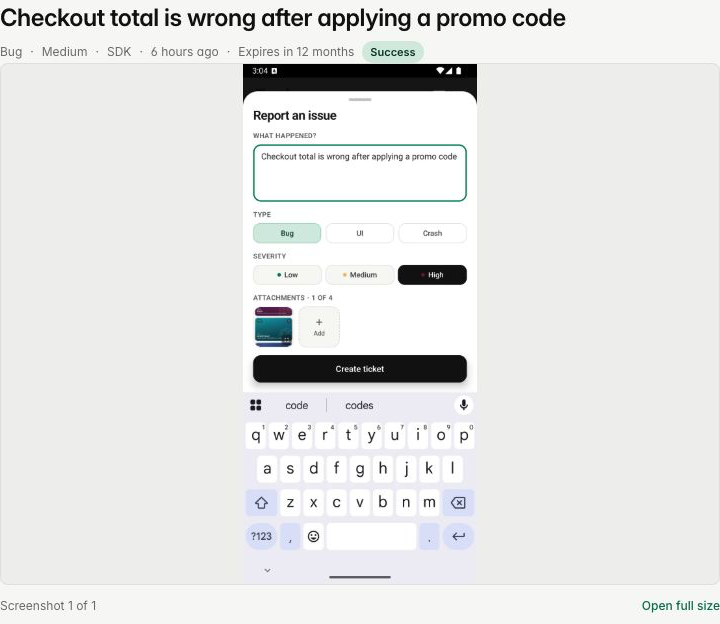
- Select a thumbnail to inspect an image or video. Open full size opens the selected screenshot.
- Use play, pause and seek for videos. Download saves the clip; Try again reloads it if playback fails.
- Read the description, device context and delivery details below the media. Download logs when attached.
- Close the report to return to the Inbox. Browser Back also returns when you opened it from the list.
Check delivery
The report is stored in the Inbox before BugScreen forwards it to any connected integrations. Delivery shows what happened for each configured destination:
- Success means every attempted delivery succeeded. Use View issue when a destination provides a link.
- Partial failures means some destinations succeeded and others failed.
- Failed means every attempted delivery failed. The report remains in the Inbox.
- No integration means no integration was configured when the report arrived; the Inbox still received it.
- Status unavailable means BugScreen stored the report but could not record the forwarding outcome.
For a failed destination, open Integration settings from its delivery entry. The Inbox does not retry delivery or manage the issue’s workflow. See the integration guides for setup and destination details.
Retention and access
Reports received on Free are kept for 30 days. Reports received on Pro or Team are kept for one year. Each report shows its own expiry date. Upgrading extends still available Free reports to one year from when they arrived; expired reports do not return. A downgrade does not shorten reports already received.
Reports from before Report Inbox became available are not added retrospectively. Once a report expires, it is no longer available in the list or through its link. If a report needs to be deleted sooner, contact support. Copies already sent to connected tools are managed in those tools.